Autoscale allows you to adjust the amount of running resources to handle the load on your application.
You can:
Add resources to handle increases in load and also save money by removing resources that are sitting idle.
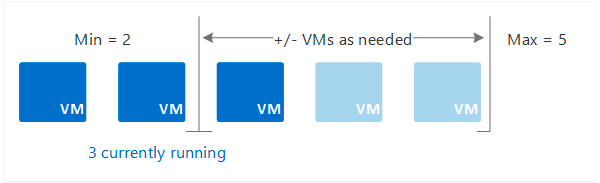
Specify a minimum and maximum number of instances to run and add or remove VMs automatically based on a set of rules:
- Having a minimum makes sure your application is always running even under no load.
- Having a maximum limits your total possible hourly cost.
Automatically scale between these two extremes using rules you create.
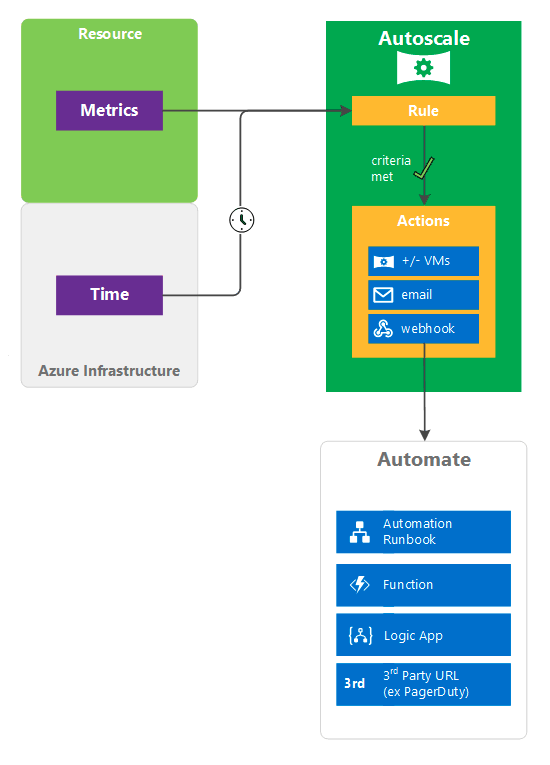
When rule conditions are met, one or more autoscale actions are triggered. You can add and remove VMs, or do other actions. The following conceptual diagram shows this process:
External reference
Overview of autoscale in Microsoft Azure
Setup
To set up the Azure integration and discover the Azure service, go to Azure Integration Discovery Profile and select Insights AutoscaleSettings.
Event support
- Supported
- Configurable in OpsRamp Azure Integration Discovery Profile.
Supported metrics
| OpsRamp Metric | Azure Metric | Metric Display Name | Unit | Aggregation Type | Description |
|---|---|---|---|---|---|
| azure_insights_autoscalesettings_MetricThreshold | MetricThreshold | Metric Threshold | Count | Average | The configured autoscale threshold when autoscale ran |
| azure_insights_autoscalesettings_ObservedCapacity | ObservedCapacity | Observed Capacity | Count | Average | The capacity reported to autoscale when it executed |
| azure_insights_autoscalesettings_ObservedMetricValue | ObservedMetricValue | Observed Metric Value | Count | Average | The value computed by autoscale when executed |
| azure_insights_autoscalesettings_ScaleActionsInitiated | ScaleActionsInitiated | Scale Actions Initiated | Count | Total | The direction of the scale operation |